When you are designing a template one of the hardest concept to wrap your head around is how text is rendered. That's because of the number of variables involved: font, font size, the size of the text box, its positioning on the page, aligning the text, and how the text gets cut off when it overflows.
The best way to understand it is to visualise the position and size of the text box itself, and the text in it. Maybe play around with different text strings, fonts, and font sizes. This is what the Debug Text Layout does. It visualises the text box and the rendered text so you can figure out how to best set up your template's overlay text.
Important
Please note that each PHP graphics library –ImageMagick (imagick) and GD (gd)– render the same text slightly differently. This comes down to the different font rendering mechanism each library uses.
When you are developing on a development or staging server please make sure that you use the same library you will be using on your live site.
ImageMagick
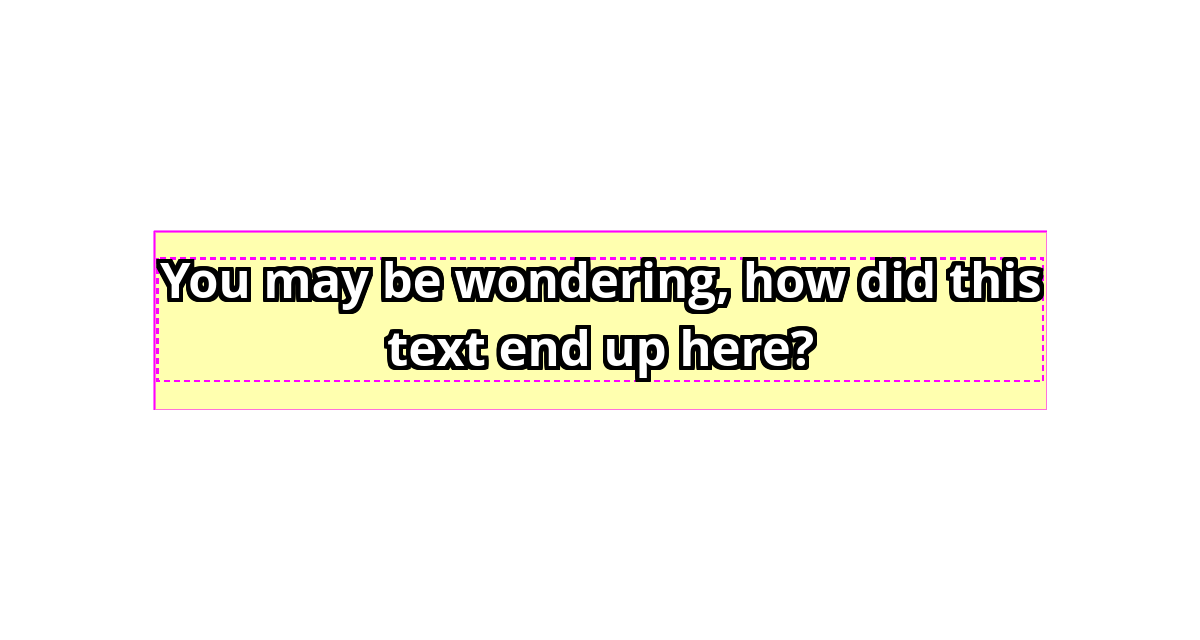
When you enable Debug Text Layout using ImageMagick you see the text box rendered as a translucent yellow box with a thin solid purple border. The position of the text box depends on the following template settings:
Centre text vertically. Whether the text box is vertically anchored to the middle of the image (Yes) or to the top side of the image (No).
Nudge Vertically from Centre (px) / Pixels from the Top. How many pixels to the bottom (positive numbers) or top (negative numbers) the text box will move vertically from its anchor position.
Centre text horizontally. Whether the text box is horizontally anchored to the middle of the image (Yes) or to the left hand side of the image (No).
Nudge Horizontally from Centre (px) / Pixels from Left Edge. How many pixels to the right (positive numbers) or left (negative numbers) the text box will move horizontally from its anchor position.
The size of the text box depends on the following template settings:
Maximum Text Width (px). The width (horizontal size) of the text box.
Maximum Text Height (px). The height (vertical size) of the text box.
ImageMagick renders all text lines as a single text label regardless of the number of actual text lines. You can see the outline of the rendered text label as a thin dashed purple border.
The positioning of the text label within the text box is automatic: it is always placed in the centre of the text box.
The alignment of the text within the text label (Left, Centre, or Right) is determined by the Text Align template option.
GD
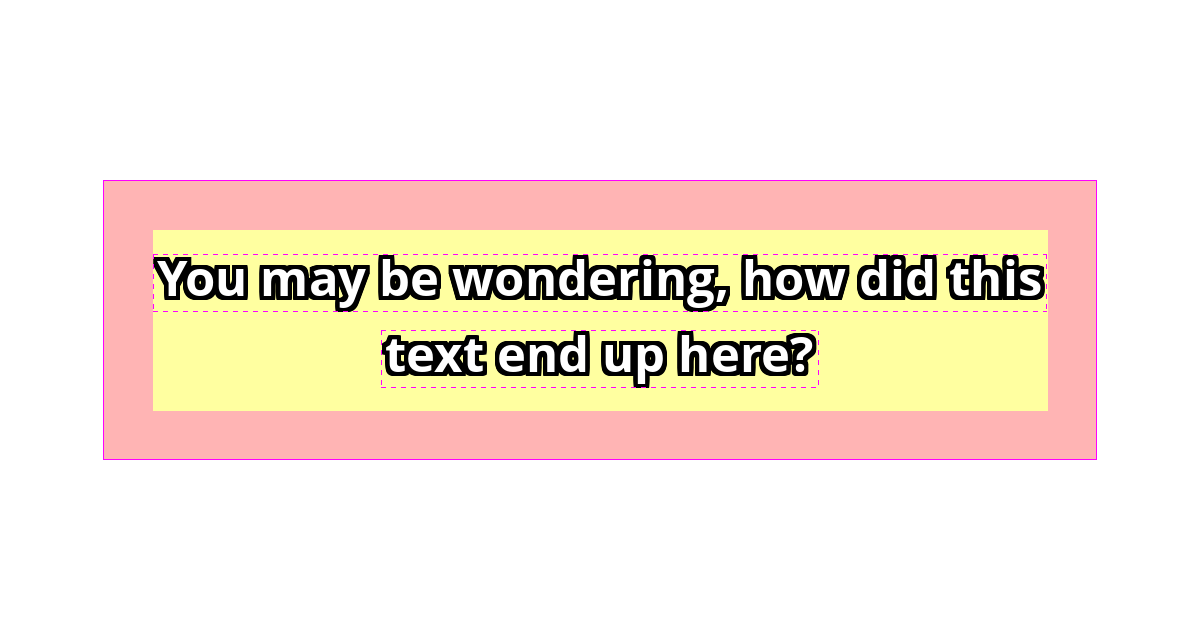
When you enable Debug Text Layout using GD you see the text box rendered as a translucent yellow box. Unlike when using the ImageMagick library, you will also see that it extends 50 pixels to all sides, rendered as a translucent pink background with a thin solid purple border. This is the text gutter which is required by GD to render text (if the text to be rendered is exactly the same size as the text box, you get strange artifacts or crashes). Do note that the gutter is added automatically. Your template settings only affect the size and positioning of the text box itself.
Note
In very rare cases (especially decorative fonts with character elements extending beyond the character's render cell) you may see parts of the font rendered inside the gutter area. In those rare cases we strongly recommend using a different font, or switching to ImageMagick which handles those cases more gracefully.
We also want to note that GD tends to render the text a bit smaller and “rougher” than ImageMagick. Its only benefit is that it's available and enabled on virtually every server which runs PHP, whereas ImageMagick usually needs to be explicitly enabled by you, or your systems administrator.
The position of the text box (yellow background) depends on the following template settings:
Centre text vertically. Whether the text box is vertically anchored to the middle of the image (Yes) or to the top side of the image (No).
Nudge Vertically from Centre (px) / Pixels from the Top. How many pixels to the bottom (positive numbers) or top (negative numbers) the text box will move vertically from its anchor position.
Centre text horizontally. Whether the text box is horizontally anchored to the middle of the image (Yes) or to the left hand side of the image (No).
Nudge Horizontally from Centre (px) / Pixels from Left Edge. How many pixels to the right (positive numbers) or left (negative numbers) the text box will move horizontally from its anchor position.
The size of the text box (yellow background) depends on the following template settings:
Maximum Text Width (px). The width (horizontal size) of the text box.
Maximum Text Height (px). The height (vertical size) of the text box.
GD renders each text line as an individual text label. You can see the outline of each line's text label as a thin dashed purple border.
The positioning of the text labels within the text box is automatic: they are always placed so that the entire text is vertically and horizontally centred inside the text box. The vertical distance between the text labels of each line cannot be changed; it is set by the font itself (it's the line height which is calculated by GD based on the font characters' render cell height).
The alignment of the text within the text label (Left, Centre, or Right) is determined by the Text Align template option.