 |
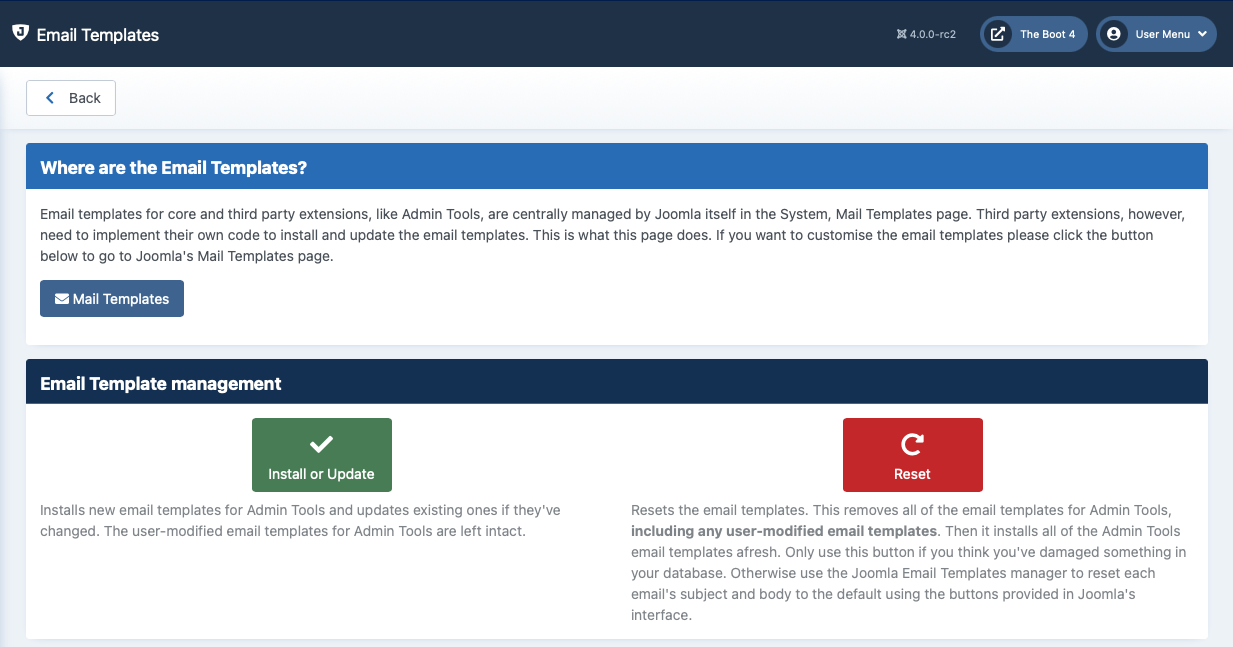
Admin Tools 7 and later uses Joomla's built-in email templates feature for all its emails. You can view and edit these email templates by going to System, Templates, Mail Templates and filtering by the Admin Tools component. Alternatively, click the button on this page.
Admin Tools tries to install its mail templates when you install or update the Admin Tools package. If you find that some email template was not installed OR if you accidentally deleted an email template you can use the button to reinstall the missing templates.
If you want to reset all Admin Tools email templates back to their original settings you can click on the button. Sure, you can always edit each one of them and click the and buttons in Joomla's interface. However, if you really want to reset ALL emails at once it's so much faster clicking just one button.
Since Admin Tools 7.9.0 the Admin Tools: Configuration Monitoring notification email includes a list of the configuration options which changed, showing the previous and current value of each modified option. Please consult the section Reporting the changed configuration options for a description of this feature and its caveats.
If you have never customised this email template you do not need to do anything. When you upgrade to Admin Tools 7.9.0 the updated template — which already contains the list of changes — is installed for you. If for any reason it was not, click the button on the Email templates page, or edit the template and click Joomla's button.
If, on the other hand, you had customised the Admin Tools: Configuration Monitoring email template before upgrading to 7.9.0, your customised copy does not yet contain the placeholder for the list of changes, so the list will not appear in the emails you receive. To fix this, edit the template (System, Templates, Mail Templates, filtering by the Admin Tools component) and add the appropriate placeholder to both the plain text and the HTML body:
In the plain text body (the Body field) add the
{INFO}placeholder wherever you want the list of changed options to appear. This produces a plain text list of the changes.In the HTML body (the HTML Body field) add the
{INFO_HTML}placeholder wherever you want the list of changed options to appear. This produces an HTML table of the changes.
Important
You must add the placeholder to both the plain text body (using {INFO}) and the HTML body (using {INFO_HTML}). Joomla! sends each email with both a plain text and an HTML part. Depending on the recipient's email client and their preferences, only one of the two parts may actually be displayed. If you add the placeholder to only one of the two parts, the recipients whose email client displays the other part will not see the list of changes at all.