 |
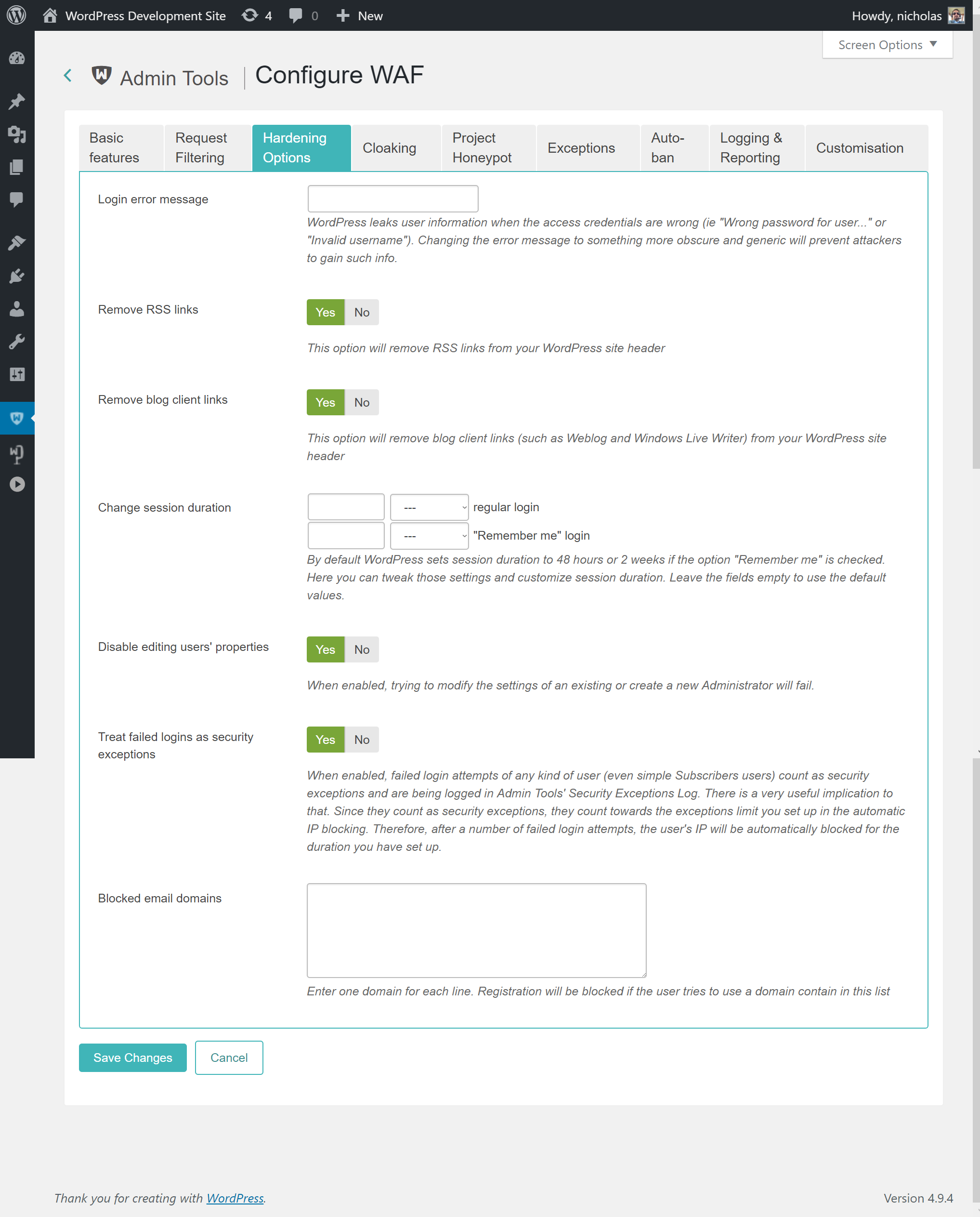
With the Hardening Options section you are able to harden the way some basic WordPress features work. These are advanced settings, so please make sure you understand what each option does before you enable it.
- Login error message
WordPress is very verbose when a user fails to login. It tells the user if the username is not found or the password is wrong. While this is useful for forgetful users, it's like striking gold for hackers. They can abuse these messages to figure out which usernames are used on your site and then launch a brute force attack (try many different common passwords until they're in).
By setting some text in this option you will be replacing the login failure message with what you've entered, no matter if it's the username or the password which is wrong. We recommend setting it to something along the lines of "You have entered the wrong username, the wrong password or you don't have an account on our site".
- Remove RSS links
Removes the RSS (feed) links from your site's pages. If someone knows, or guesses, the feed URL they can still access the RSS feed.
- Remove blog client links
Removes the special links normally present on your site's pages which allow you to use third party blog editor applications. Obviously you should only enable this option if you're not using any such software.
- Change session duration
WordPress keeps a user logged in for 48 hours or, if they have used the Remember Me feature, for 2 weeks. You can use this option to change the duration of the login session. It's recommended that you keep the regular login short, around 30 minutes, to contain the damage of any cookie stealing attacks against your device.
- Disable editing users' properties
When enabled, trying to modify the settings of an existing or create a new user from WordPress' Users page will fail. You will need to disable this feature to create or edit WordPress users.
- Disable creating / editing admin users from the frontend
When enabled, any attempt to create a new Administrator or edit an existing Administrator's properties from outside the WordPress admin area (wp-admin) will be blocked. This protects against exploits that try to create admin accounts via the REST API or other non-admin entry points.
This feature only applies to requests made outside of the WordPress administration area. Creating and editing users from within wp-admin is not affected by this feature (use the Disable editing users' properties feature for that). Likewise, if the currently logged in user is already an Administrator, their requests are allowed through — this ensures that legitimate admin usage of the REST API (e.g. the Gutenberg editor, mobile apps, or third-party admin tools) continues to work normally.
This option is enabled by default. There is no legitimate reason for a non-administrator user to create or edit administrator accounts from outside the WordPress admin area.
- Treat failed logins as blocked requests
When enabled, failed login attempts of any kind of user (even simple users only allowed to comment on posts) count as blocked requests and are being logged in Admin Tools' Blocked Requests Log. There is a very useful implication to that. Since they count as blocked requests, they count towards the exceptions limit you set up in the automatic IP blocking. Therefore, after a number of failed login attempts, the user's IP will be automatically blocked for the duration you have set up. This will catch and block brute force attacks i.e. hackers trying different combinations of usernames and password against your site, in case they can guess a combination which lets them in.
- Deactivate users on failed login
When enabled, users who reach a specific number of failed login attempts within a certain period of time will be automatically deactivated. An email will be sent to the user notifying them of the deactivation.
- Deactivation threshold
The number of failed login attempts within the specified period of time after which a user will be deactivated.
- Log usernames
When enabled, Admin Tools will include the username in the blocked requests log entry when a failed login is recorded.
Warning
Logging usernames may raise privacy concerns and could conflict with GDPR obligations, since usernames may constitute personal data. We strongly recommend keeping this option disabled unless you have a specific need and have addressed the relevant privacy implications.
- Prevent forgotten backend users from logging in
When enabled, Admin Tools will periodically check for users who have not logged in for a long time and block them.
- Check frequency (hours)
How often should Admin Tools check for obsolete backend users?
- User roles to check
Select the user roles that should be checked for inactivity. We recommend at least the Administrator and Super Administrator roles.
- Inactivity threshold (days)
Users who have not logged in for this many days will be considered obsolete.
- Protect obsolete users
When enabled, obsolete users cannot be unblocked from their user profile by other users (except Super Administrators).
- Monitor Super User accounts
Admin Tools will keep track of the user accounts with administrative access. If a new Administrator is added outside of WordPress' Users page, an email will be sent to the email addresses configured in Email this address on Super Users change. Moreover, the detected new Administrator accounts will be automatically blocked. The idea is that these administrators are most likely created as the result of a hack or rogue code.
Please note that users created or added by other Administrators in the backend of the site using WordPress' Users page will NOT be blocked by this feature. If you wish to disable this please use the Disable editing users' properties feature.
- Roles to monitor
Select the roles that should be monitored for new accounts. By default, only the Administrator role is monitored.
- Email this address on Super Users change
The email addresses, separated by commas, you want to be emailed about any attempted (and blocked!) change in the list of Super Users on your site. If this is left blank, the email address set up in the Email this address after an automatic IP ban option will be used. If both fields are empty, an email will be sent to all activated Administrator accounts.
- Warn about self XSS
Display a message in the browser console to warn the user to avoid running any command inside it. This can lead to hacking yourself (a.k.a. Self XSS attacks) and steal your account data.
This feature is enabled by default. When a logged-in user opens the browser's Developer Tools (usually by pressing F12) and looks at the Console tab, they will see a prominent red warning message. This is intended to prevent social engineering attacks where an attacker tricks a user into pasting malicious JavaScript into the console.
- Monitor Critical Files
Critical files commonly modified by hackers (
index.phpand allwp-*.phpfiles in the root, and thewp-admin/index.phpfile) will be monitored for changes on every page load. If a change is detected, an email will be sent to the email addresses configured in Email this address on monitored files change. This usually lets you get an ahead warning in case of a successful hacking attempt.Admin Tools checks these files every time your site loads a page. The size of the file, the file's last modification date, the MD5 checksum of the file's contents and the SHA-1 checksum of the file's contents are calculated by PHP and compared against the information stored in the database table #__admintools_storage (where #__ is the common table name prefix of your site), in the row with the key
criticalfiles_data. If any of this information has changed since the last request to your site, Admin Tools considers the file changed and triggers an email to you about changed files. Every time a change is detected the aforementioned information for each file is updated in the #__admintools_storage database table. This way you will not get any further e-mails about the changed file unless it changes once again.It is possible for an external application or process to modify these files, then restore them back to their previous state — including the last modified date. If a request to your site takes place while any of these files is in a modified state you will receive an email. This may be perceived as a “false positive” because by the time you check your site again the change has been reverted. This is NOT a false positive, something really DID change. Admin Tools deliberately sends you an email because this is something which can also happen during a legitimate attack: the attacker modifies one of these files to gain access to your site, then covers up their tracks by restoring the file to its previous state.
It is also possible that you will receive an email if someone or something modifies the #__admintools_storage database table row. In this case the contents of the database table may not reflect the files currently on the server's filesystem. As a result, Admin Tools perceives the files as changed. For example, this may happen if the host automatically rolled back the state of your database or when you restore a database-only backup / SQL dump of your database.
Finally, you will most likely receive this kind of email after updating the WordPress version on your site, after updating your site's theme, and after updating the Global Configuration of your site — even if this happens automatically without your interaction. In both cases some of the critical files have changed. When you update WordPress its files are changed. When you update your theme its files are changed. These are expected changes. If they happen without your knowledge you should track down what is causing them and decide whether it's acceptable behaviour or not.
- Email this address on monitored files change
The email addresses, separated by commas, you want to be emailed about any change in the monitored critical files takes place. If this is left blank, the email address set up in the Email this address after an automatic IP ban option will be used. If both fields are empty, an email will be sent to all activated Administrator accounts.
- Disable password reset for specific User Roles
When enabled, users belonging to any of the selected User Roles will be blocked from requesting a password reset using the "Lost your password?" feature. This is a security measure to prevent phishing attacks that target administrator accounts. Administrators can still have their password reset by another administrator through the Users page in the WordPress admin area.
- User Roles blocked from resetting the password
Select the User Roles whose members will not be allowed to request a self-service password reset. We recommend at least the Administrator role.
- Warn about use of well-known passwords
When this option is enabled, Admin Tools will connect to the Have I Been Pwned database and check whether the user's current password is known to have been exposed in a data breach. If a match is found, the user will be blocked from using that insecure password and will be prompted to change it.
The check uses a k-anonymity model: only the first five characters of the SHA-1 hash of the password are sent to the Have I Been Pwned API, so the actual password is never transmitted.
- Roles to check for well-known passwords
Select the user roles whose members will have their passwords checked against the Have I Been Pwned database. By default, only Administrator accounts are checked.
- Disable XML-RPC
WordPress 3.5 and later come with the XML-RPC services turned on by default, without any user controls to disable them. The XML-RPC services are used for remote control of your WordPress installation such as JetPack, the WordPress desktop and mobile apps, WP-CLI and remote blogging clients (think of something like Windows Live Writer or MarsEdit). They can also be extended by third party plugins to provide additional functionality which can be used to control aspects of your site remotely.
XML-RPC services have been long linked to security issues. They accept XML-formatted content which has its challenges with regards to parsing it in a safe manner. Moreover, there is a very common attack due to the very nature of the XML-RPC services which is still in use: password brute forcing. The XML-RPC services run much faster than your site, bypassing your theme and other parts of your site which take a long time to process. Moreover, they accept a plain text username and password. If the username and password combination is incorrect they quickly respond with an error. If it's correct they provide meaningful output. This is used by attackers to try tons of different passwords in an effort to guess the one you are using. This is called brute forcing. Since XML-RPC is really fast, bypasses any two factor authentication plugin you may have installed and most other kind of account protection they provide a viable and practical way to perform brute-forcing on your site. This attack is mostly dealt with by using the "Treat failed logins as blocked requests" feature explained above. However, if you do not absolutely need remote access to your site it's advisable to disable XML-RPC services altogether to close every small loophole which could be abused by an attacker to gain a foothold on your site.
Please note that activating this feature does NOT completely block access to the xmlrpc.php file on your site (the XML-RPC services endpoint). It does, however, cause it to always reply with error code 405 even if the username and password is correct. Since the XML-RPC services always fail without trying to parse the data sent in the request they can no longer be abused by attackers for any of the attacks which would otherwise be possible with the XML-RPC services enabled.
We need to clarify that XML-RPC services are not a security threat by themselves. They can be a security threat if you or any of your privileged users do not follow security best practices. If you are using only plugins with good quality code and the passwords of your privileged (Author and above) users are secure you are safe, within reason. Secure passwords in this context mean truly random passwords consisting of at least 32 characters which are a mix of lowercase and uppercase letters, digits and symbols. As a rule of thumb, if you can memorize the password and you do not have an eidetic memory then your password is not secure. Always use random, long passwords stored in a password manager application such as 1Password, KeePass, LastPass etc.
As a final point, no, just because you have an obscure blog with a handful of visitors per month does not mean hackers will leave you alone. Hackers typically take over sites to send spam, host malware or attack other high-value sites. The more obscure your site the least likely they are to get caught. Therefore your site's obscurity makes it a desirable target.
- Blocked email domains
Enter one domain per line, without the at sign.
If a user tries to register an account with an email address that uses one of these email domains they will be blocked. This is useful to block free main services from certain countries which are commonly used by comment spammers.
- Filter user registration by email
Controls how Admin Tools treats the Blocked email domains list during user registration. When set to Allow, only users with email addresses from domains in that list will be permitted to register. When set to Block, users with email addresses from those domains will be prevented from registering.
This option works in conjunction with the Blocked email domains list above.
- Block common usernames
When enabled, Admin Tools will block creation of new user accounts whose username is in a default blocking list of over 1,500 common or reserved usernames (e.g. admin, root, administrator, webmaster, etc.). This prevents attackers from registering accounts with well-known usernames that could be used for social engineering or confusion with real administrator accounts.
Administrators can still create users with any username from the WordPress admin area or the REST API.
- Usernames explicitly forbidden
A list of additional usernames to block, one per line. These are added to the default blocking list.
- Usernames explicitly allowed
A list of usernames to allow even if they appear in the default blocking list, one per line. Use this to unblock specific usernames that you need to use on your site.