Table of Contents
SocialMagick generates OpenGraph images by combining one or more of a solid / semi-transparent colour card, an image of your choice, an image from your content (e.g. the intro, full article, or category image) or a static image, and text (content title, or static text). Which of these items are applied, how they are applied, and in which order is defined in a Template.
Setting up an OpenGraph image template would normally require a good understanding of how compositing works, and a fair amount of guesswork as to how it will all get combined together into an image. This is a tall order, and users would regularly tweak the template, go to the frontend to generate a new image, look at the page source code for the image URL, open that URL, inspect the image, rinse and repeat until the desired results are achieved. This was a gruelling process.
But not anymore.
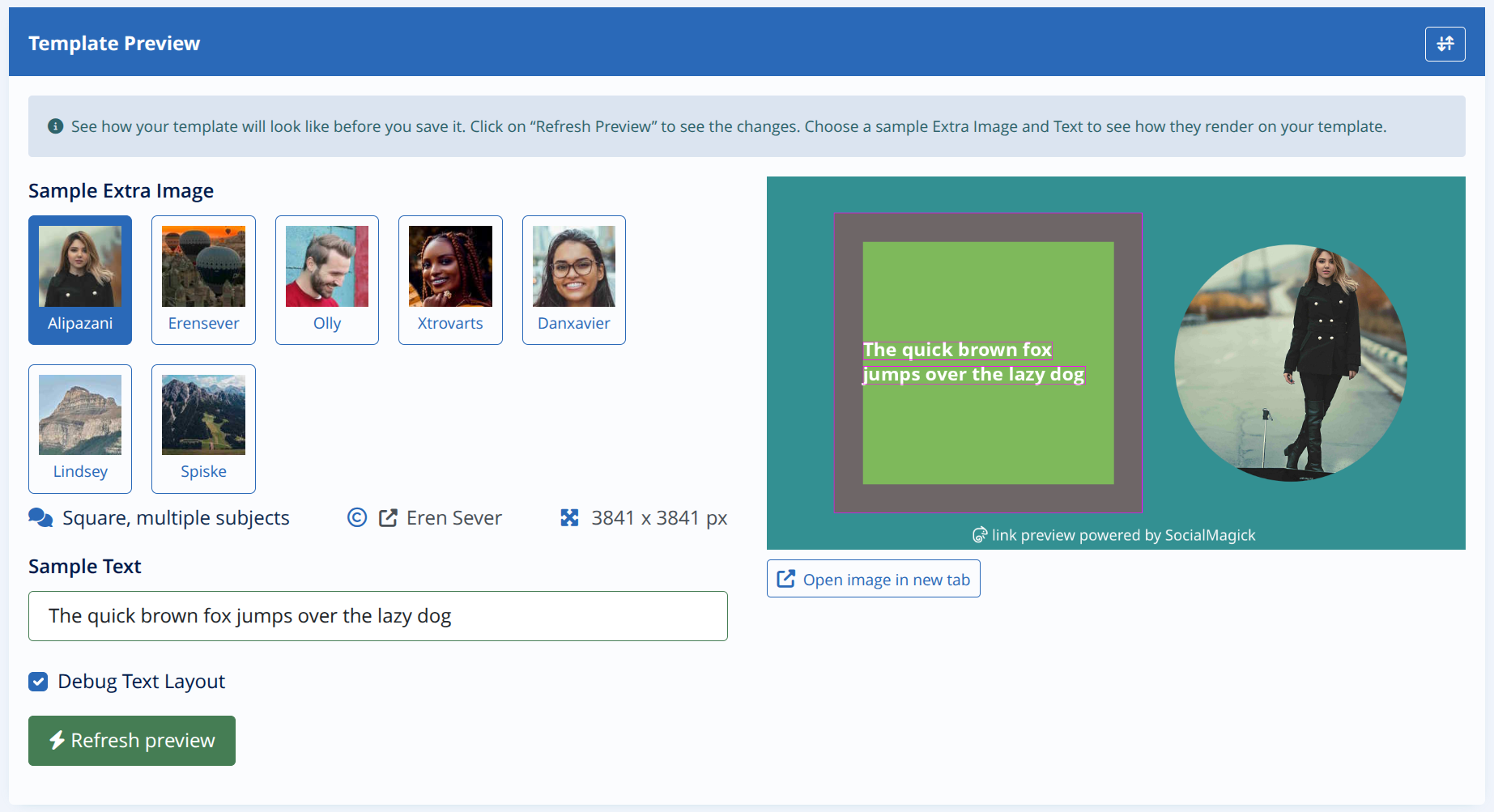
SocialMagick now comes with a template preview. It uses a selection of sample images to be used as the Extra Image (assuming this option is set to neither None nor Static), and custom text of your choice to render an OpenGraph image using your template options as you are editing the template. You don't even have to save your template; it picks up the options on the template edit page. You can even enable the debug text layout feature just for the preview –instead of at the component Options level– to fine-tune the placement of your overlay text on the template!
You can collapse (hide) the template preview by clicking on the Show / Hide Preview icon found on the header of the Template Preview area.
The Sample Extra Image lets you choose one of the predefined images shipped with SocialMagick as a stand-in for your template's Extra Image as long as your Extra Image Source is set to anything other than None or Static Image. The available images are:
Alipazani. Portrait image, with the focus towards the top-right of the image.Erensever. A square image with several subjects in the foreground.Olly. A landscape image with the subject on the left.Xtrovarts. A landscape image with the subject on the right.Danxavier. A landscape image with the subject on the centre.Lindsey. A vertical panorama (much taller than wide) image.Spiske. A horizontal panorama (much wider than tall) image.
The images were selected so that they cover the vast majority of photographs we have seen used on real world sites. The images, and the JSON file with their definition, is in media/com_socialmagick/images/examples. Please note that if you decide to edit those files, they will be overwritten next time you update the extension.
The Sample Text will be used as a stand-in for the overlay text source. We recommend using text that is about the same length and in the same language as the text you're going to use in your content and menu items.
The Debug Text Layout will turn on the debug text layout feature when rendering the image. As you can see in the screenshot above, it renders the textbox (with a recommended padding area) and the individual text lines' bounding boxes so that you can understand why the text ended up where it is, and why it's rendered the way it is. We have found this to be one of the most time-saving features when trying to compose a visually interesting OpenGraph image.
After making changes to your template's configuration click on to generate a new preview image without having to save the changes to the template. This is very useful if you are editing a template already in use; you don't want to save the template –causing all existing OpenGraph images to be generated again with the new template– before you are certain your changes work the way you want them to!
The preview image is rendered in a fairly small size. If you want to inspect it in detail, click on to open the image file in a new browser tab.