Table of Contents
- 1. The Control Panel
- 2. The Plugin Params page
- 3. Fixing the permissions of files and directories
- 4. Emergency Off-Line Mode
- 5. Protecting Admin Tools with a password (Master Password)
- 6. Protect your WordPress administration with a password
- 7. The .htaccess maker
- 8. Malware Detection (the PHP File Scanner)
- 9. Web Application Firewall
- 10. WordPress tools
- 11. Database tools
- 12. HTTPS Tools
- 13. URL Redirection
- 14. Import and Exporting Settings
The main page of the plugin which gives you access to all of its functions is called the Control Panel.
 |
The messages area
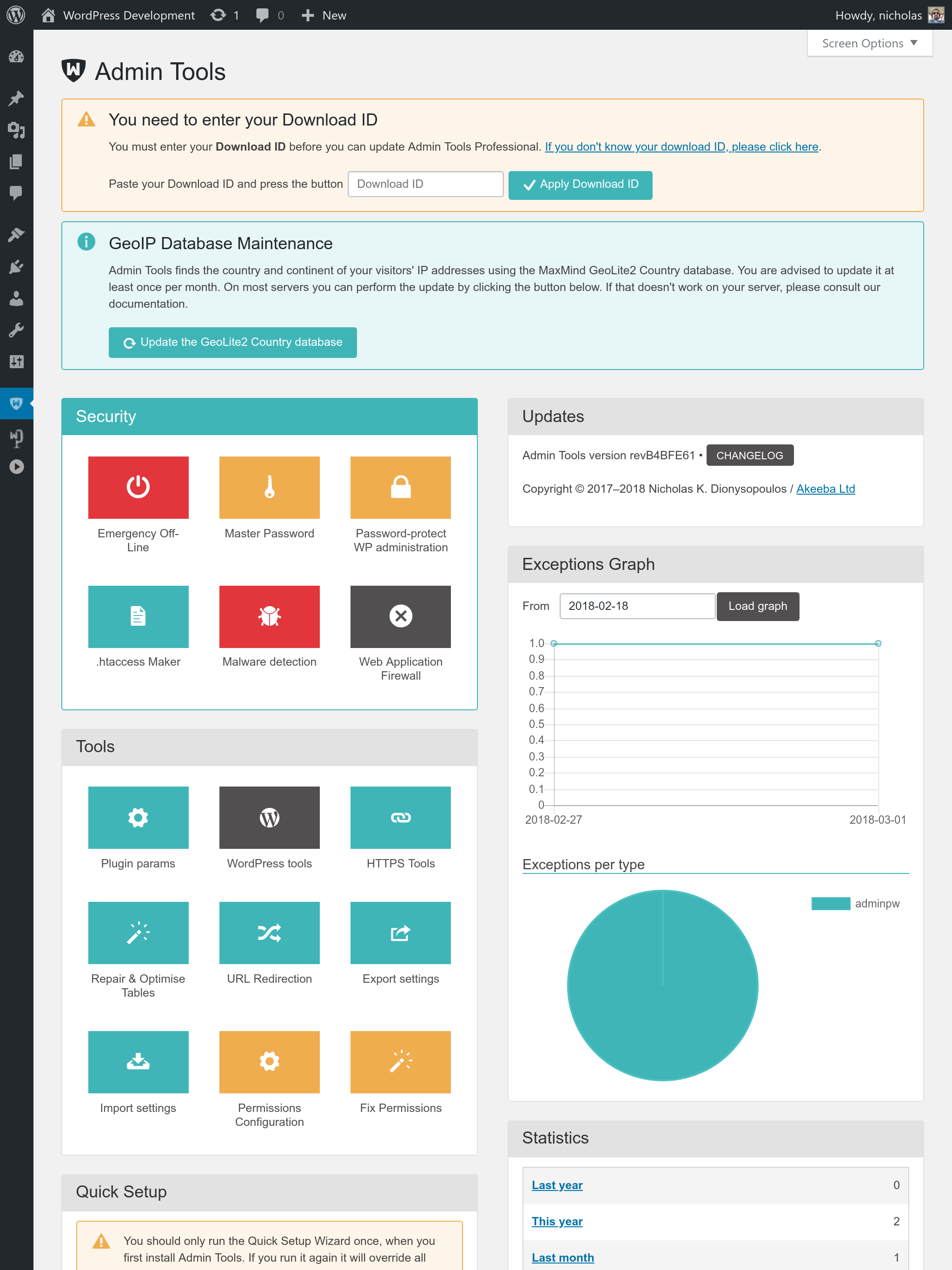
At the top of the Control Panel you can see one of several messages.
If there is an update available you will get a notification with a link to update Admin Tools. Clicking on it will take you to the Update page where you can apply the update.
If you are using Admin Tools Professional, our for-a-fee version, but have not yet entered your Download ID you will be given instructions on how to do it. The Download ID is necessary for receiving updates to the Professional version.
If Admin Tools detects that the IP you are currently using has been blocked automatically it will offer you the option to unblock it with the click of a single button.
Other informative messages may also appear in this area. We strongly advise you to read them carefully. We only show you messages when we believe you need to take some action with relevance to your site's security.
The main control panel (buttons) area
The left hand side of the main area of the page contains the main control panel. It consists of several groups of buttons. Each button corresponds to a feature available to Admin Tools. The rest of the documentation will describe each of these features in more detail.
The updates and statistics area
The right had side of the main area of the page contains the updates and statistics area.
Towards its top you can see the Admin Tools version information and the availability of updates. You can also review the changelog of the currently installed Admin Tools version.
Below that you will see the graphs showing the number of logged blocked requests (attacks Admin Tools Professional has protected you against), their distributions by type and a few statistics about them, e.g. how many exceptions have occurred in the last year, month, week, day and so on.